
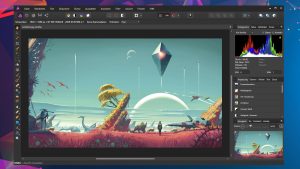
Affinity Photo Mac is one of the best choices available today. Designed specifically for macOS, this powerful application combines advanced editing tools, excellent performance, and a clean interface that feels right at home on Apple devices.
Whether you’re a photographer, graphic designer, digital artist, or someone who enjoys editing personal photos, Affinity Photo offers everything you need in one package. Unlike many subscription-based editors, you purchase the software once and receive continuous updates without recurring monthly fees.
The application is optimized for both Intel-based Macs and Apple Silicon devices, delivering fast performance even when working with large RAW images or complex layered projects. Thanks to its GPU acceleration and deep macOS integration, editing feels smooth and responsive.
In this review, we’ll explore the key features, latest improvements, real-world use cases, and everything you need to know before installing Affinity Photo on your Mac.
Key Features of Affinity Photo for Mac
- Professional RAW Photo Editing
- Affinity Photo includes a dedicated RAW development workspace that gives photographers complete control over their images before editing begins.
- You can adjust:
- Exposure
- White Balance
- Highlights & Shadows
- Lens Corrections
- Noise Reduction
- Sharpness
- Color Profiles
- The non-destructive workflow ensures your original images remain untouched while allowing unlimited creative adjustments.
- Advanced Layer Editing
- Layer editing is one of Affinity Photo’s strongest features.
- Users can work with:
- Unlimited layers
- Layer masks
- Blend modes
- Adjustment layers
- Live filter layers
- Smart selections
- Managing complex designs is simple thanks to the organized Layers panel and intuitive controls.
- AI-Powered Selection Tools
- Selecting difficult objects like hair, trees, or transparent subjects is surprisingly easy.
- Popular selection tools include:
- Selection Brush
- Object Selection
- Magic Wand
- Pen Tool
- Refine Edge
- These tools help reduce editing time while improving precision.
- Excellent Performance on Apple Silicon
- One of the biggest advantages of Affinity Photo Mac is its native support for Apple Silicon processors.
- Whether you’re using:
- MacBook Air (M1)
- MacBook Pro M2
- Mac mini
- iMac
- Mac Studio
- the application launches quickly and handles large projects without slowing down.
- GPU acceleration also improves rendering speed for filters and live effects.
- Comprehensive Retouching Tools
- Professional photographers will appreciate the extensive retouching toolkit.
- It includes:
- Clone Brush
- Healing Brush
- Inpainting Brush
- Frequency Separation
- Blemish Removal
- Dodge & Burn
- Liquify Persona
- Portrait editing becomes fast and natural without needing additional plugins.
- HDR Image Editing
- Affinity Photo supports true HDR editing with full 32-bit processing.
- Users can:
- Merge bracketed exposures
- Recover highlights
- Improve shadow detail
- Create realistic HDR photographs
- This feature is especially useful for landscape and architecture photography.
- Panorama Stitching
- Instead of relying on third-party applications, Affinity Photo can automatically stitch multiple images into stunning panoramic photographs.
- The software aligns images intelligently while minimizing distortion.
- Focus Stacking
- Macro photographers often struggle with limited depth of field.
- Affinity Photo solves this by allowing users to combine multiple focus points into one perfectly sharp image.
- The automatic alignment process is accurate and produces excellent results.
What’s New in the Latest Version
- Recent versions of Affinity Photo for Mac introduce several improvements designed to enhance both speed and usability.
- Some notable updates include:
- Faster Apple Silicon Optimization
- Performance has been further improved for M-series Macs, allowing quicker rendering and smoother editing.
- Better Brush Engine
- Painting and retouching now feel more responsive, especially when using pressure-sensitive tablets.
- Improved Layer Management
- Working with large projects is easier thanks to enhanced layer organization and smarter navigation.
- Better RAW Processing
- Support for newer camera models and improved RAW decoding delivers more accurate colors and better detail.
- Stability Improvements
- Various bug fixes improve reliability during long editing sessions.
Best Alternatives to Affinity Photo for Mac
- Adobe Photoshop
- Adobe Photoshop remains the industry standard for professional photo editing. It offers advanced AI-powered tools, cloud integration, and an extensive plugin ecosystem. However, it requires a monthly subscription, making it more expensive than Affinity Photo.
- Best For
- Professional photographers
- Graphic designers
- Creative agencies
- Pixelmator Pro
- Pixelmator Pro is built exclusively for macOS and is highly optimized for Apple Silicon Macs. It features an intuitive interface, machine learning tools, and excellent performance, making it a great choice for everyday image editing.
- Best For
- macOS users
- Beginners and professionals
- Quick photo enhancements
- GIMP
- GIMP is a free, open-source image editor that includes many advanced editing features. Although its interface isn’t as polished as Affinity Photo, it’s a solid option for users who need powerful editing tools without spending money.
- Best For
- Students
- Beginners
- Budget-conscious users
- Capture One
- Capture One is well known for its outstanding RAW image processing and color grading capabilities. It is especially popular among studio and commercial photographers who demand precise color accuracy.
- Best For
- Professional photographers
- Commercial photography
- Studio workflows
Pros and Cons
Pros
- Professional-grade photo editing tools
- One-time purchase with no monthly subscription
- Optimized for Apple Silicon Macs
- Excellent RAW image processing
- Supports PSD and many popular file formats
- Fast performance with GPU acceleration
- Non-destructive editing workflow
- Advanced retouching and layer management
- Regular feature updates
- Clean and user-friendly interface
Cons
- No built-in cloud storage
- Smaller plugin ecosystem than Photoshop
- Limited collaboration features
- Learning curve for complete beginners
- Some advanced Adobe-exclusive tools are unavailable
System Requirements
- macOS 12 Monterey or later
- Intel or Apple Silicon processor
- 8 GB RAM
- 2 GB available storage
- Metal-compatible graphics hardware
How to Install Affinity Photo on Mac
- Installing Affinity Photo is straightforward and only takes a few minutes.
- Download the latest version of Affinity Photo from the official website or your preferred trusted software source.
- Open the downloaded installation file.
- Drag the Affinity Photo application into the Applications folder if prompted.
- Launch the application from the Applications folder or Launchpad.
- Grant any necessary permissions requested by macOS.
- Activate your purchased license if required.
- Start editing your photos and customize your workspace according to your preferences.
Download Affinity Photo for macOS

FAQs
- Is Affinity Photo available for Mac?
- Yes. Affinity Photo is fully compatible with macOS and supports both Intel-based Macs and Apple Silicon devices, including M1, M2, and newer chips.
- Is Affinity Photo better than Photoshop?
- It depends on your needs. Affinity Photo offers many professional editing features without requiring a subscription, making it an excellent value. Photoshop remains the industry standard for users who rely on Adobe’s cloud ecosystem and advanced AI tools.
- Does Affinity Photo support RAW files?
- Yes. includes a powerful RAW development workspace that supports files from many popular camera manufacturers and allows detailed non-destructive editing.
- Can Affinity Photo open Photoshop PSD files?
- Yes. supports PSD files along with many other common formats, making it easy to work with projects created in Adobe Photoshop.