
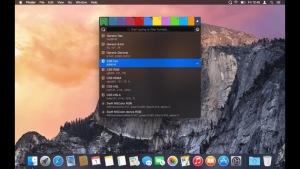
ColorSnapper Mac excels. Designed specifically for macOS, ColorSnapper allows users to capture colors from anywhere on their screen with incredible precision. Whether you’re a graphic designer, UI/UX specialist, web developer, digital artist, or content creator, this lightweight utility can significantly improve your workflow.
Unlike basic color-picking tools, ColorSnapper combines advanced color management features with a clean and intuitive macOS interface. It supports multiple color formats, keyboard shortcuts, and high-resolution displays, making it one of the most useful productivity tools for creative professionals.
In this detailed review, we’ll explore ColorSnapper’s features, latest improvements, alternatives, installation process, system requirements, and overall value for Mac users.
Key Features of ColorSnapper Mac
- Pixel-Perfect Color Picking
- The primary feature of ColorSnapper is its ability to capture colors from any area of your screen.
- Users can select colors from:
- Websites
- Images
- Videos
- Applications
- User interfaces
- Design mockups
- The magnified preview ensures accurate color selection, even on Retina displays.
- Real-World Use Case
- A web designer can quickly identify brand colors from a client’s website without manually inspecting code.
- Support for Multiple Color Formats
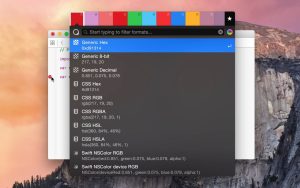
- ColorSnapper automatically converts selected colors into various formats.
- Supported formats include:
- HEX
- RGB
- HSL
- NSColor
- UIColor
- Swift
- CSS
- Objective-C
- This flexibility saves time when working across different design and development projects.
- Floating Picker Window
- The floating picker allows users to keep color information visible while working.
- This feature is especially useful when comparing colors across multiple applications.
- History and Saved Colors
- ColorSnapper automatically stores recently selected colors.
- Benefits include:
- Quick access to previous colors
- Improved workflow efficiency
- Better project consistency
- Easier brand color management
- Users no longer need to repeatedly sample the same colors.
- Custom Keyboard Shortcuts
- Speed is essential for designers and developers.
- ColorSnapper lets users assign custom keyboard shortcuts for instant color picking.
- This reduces interruptions and keeps workflows moving smoothly.
- Retina Display Optimization
- Modern Macs feature high-resolution Retina displays.
- ColorSnapper is fully optimized for these screens, providing precise color detection without scaling issues.
- Copy Colors Instantly
- After selecting a color, users can instantly copy the desired format to the clipboard.
- This simple feature eliminates several manual steps and improves productivity.
- Native macOS Experience
- One of ColorSnapper’s biggest strengths is how naturally it integrates with macOS.
- The interface feels lightweight, responsive, and consistent with Apple’s design philosophy.
What’s New in the Latest Version
- Recent updates have focused on performance improvements and compatibility enhancements.
- Key improvements include:
- Better support for the latest macOS versions
- Improved Apple Silicon optimization
- Enhanced color detection accuracy
- Faster color copying workflows
- Improved stability and bug fixes
- Better Retina display support
- Refined user interface elements
- These updates help ensure ColorSnapper remains one of the most reliable color picker tools available for Mac users.
- Real-World Use Cases
- For UI/UX Designers
- Designers can quickly extract colors from wireframes, prototypes, and competitor interfaces.
- For Web Developers
- Developers can instantly capture colors from websites and convert them into CSS-ready values.
- For Graphic Designers
- Graphic artists can maintain consistency across branding materials and digital assets.
- For Content Creators
- Video editors and content creators can identify exact colors for thumbnails, overlays, and graphics.
- For Students
- Design students can learn color theory and recreate professional design palettes more efficiently.
Best Alternatives to ColorSnapper Mac
- Sip
- Sip is one of the most popular alternatives available for macOS. It offers advanced color organization, palettes, and design collaboration features for professional designers.
- Digital Color Meter
- Digital Color Meter comes built into macOS and provides basic color-picking functionality without requiring additional software.
- ColorSlurp
- ColorSlurp offers a modern interface, palette management, and support for multiple color formats. It is particularly popular among UI designers.
- Pikka
- Pikka is another dedicated color picker for Mac users that focuses on simplicity and speed while providing essential color management tools.
- Pixie
- Pixie is known for its lightweight design and quick color selection capabilities, making it suitable for users who need a straightforward solution.
Pros and Cons
Pros
- Easy-to-use interface
- Accurate color selection
- Multiple color format support
- Retina display optimization
- Clipboard integration
- Custom keyboard shortcuts
- Lightweight and fast performance
Cons
- Limited functionality outside color management
- Some advanced features may require a paid version
- Casual users may not need all available tools
System Requirements
- macOS 11 Big Sur or later
- Intel-based Mac or Apple Silicon Mac
- At least 4 GB RAM
- Minimal storage space required
- Administrator permissions for installation
- Internet connection for updates and license activation
Most modern Mac systems can run ColorSnapper smoothly without any performance concerns.
How to Install ColorSnapper on Mac
- Download ColorSnapper
- Download the latest version from the official website.
- Open the Installer
- Locate the downloaded DMG file and double-click it.
- Move to Applications
- Drag the ColorSnapper icon into the Applications folder.
- Launch the Application
- Open ColorSnapper from Launchpad or the Applications folder.
- Grant Permissions
- Allow screen recording permissions if required for color detection across applications.
- Configure Shortcuts
- Set up your preferred keyboard shortcuts and color formats.
- Troubleshooting Tips
- Update macOS to the latest version.
- Restart the application if permissions are not recognized.
- Verify screen recording permissions in System Settings.
FAQs
- ¿Merece la pena ColorSnapper para Mac?
- Sí. Para diseñadores, desarrolladores y profesionales creativos, ColorSnapper puede acelerar significativamente las tareas relacionadas con el color.
- ¿Es ColorSnapper compatible con Macs con procesadores Apple Silicon?
- Sí. La aplicación está optimizada para Apple Silicon y funciona de forma eficiente en hardware Mac moderno.
- ¿Puedo copiar colores en diferentes formatos?
- Por supuesto. ColorSnapper admite HEX, RGB, HSL, CSS, Swift, Objective-C y otros formatos.
- ¿Cuáles son las mejores alternativas a ColorSnapper?
- Sip y ColorSlurp se encuentran entre las mejores alternativas para usuarios que buscan funciones adicionales de gestión del color.