
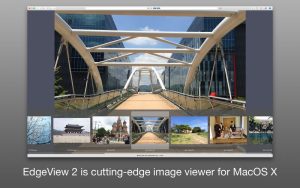
If you’re looking for a lightweight yet powerful image viewer for your Mac, EdgeView Mac is a great option to consider. Designed specifically for macOS users, EdgeView offers fast image browsing, support for compressed files, PDF viewing, and a smooth user experience that surpasses Apple’s built-in Preview app.
Many Mac users work daily with large collections of images, comics, design resources, screenshots, and documents. While macOS includes basic viewing tools, it often lacks advanced browsing capabilities. That’s where EdgeView Mac comes in.
This application combines speed, convenience, and versatility in a single package. Whether you’re a photographer, designer, student, developer, or casual user, EdgeView offers an efficient way to view and manage visual content on your Mac.
In this review, we’ll explore its main features, the latest improvements, alternatives, advantages and disadvantages, system requirements, and the installation process.
What is EdgeView for Mac?
EdgeView for Mac is an advanced image viewer and file explorer developed for macOS. It supports a wide variety of image formats and allows users to view files directly from compressed archives without needing to extract them first.
Unlike traditional image viewers, EdgeView focuses on speed and convenience. Users can browse folders, zoom in on images, read comics, and preview files quickly with minimal system resource usage.
Its clean interface and native macOS design make it an excellent choice for those who value both performance and simplicity.
Key Features
- Fast Image Viewing
- One of the biggest advantages of EdgeView Mac is its speed.
- The application loads images quickly, even when working with large collections. Users can navigate between files smoothly without noticeable lag.
- This makes it ideal for:
- Photographers reviewing image libraries
- Designers browsing project assets
- Users managing large screenshot collections
Support for Multiple Image Formats - EdgeView supports a wide range of image file types, including:
- JPG
- JPEG
- PNG
- GIFs
- TIFF
- BMP
- WEBP
- HEIC
- RAW image formats
- This wide compatibility eliminates the need for multiple viewing applications.
- Archive File Support
- One standout feature is archive viewing.
- Users can open and browse:
- ZIP files
- RAR files
- CBZ comic archives
- CBR comic archives
- Other compressed formats
- The best part is that files can be viewed directly without manual extraction.
- PDF Viewing
- EdgeView also functions as a lightweight PDF viewer.
- Users can:
- Read documents
- Zoom pages
- Navigate quickly
- Access multi-page files efficiently
- This adds extra convenience for users who regularly work with PDFs.
- Full-Screen Reading Mode
- The full-screen mode provides a distraction-free viewing experience.
- This feature is especially useful for:
- Comic readers
- Manga fans
- Digital artists
- Students reviewing study materials
- Navigation remains smooth and intuitive throughout the reading experience.
- Slideshow Functionality
- For presentations or image browsing sessions, EdgeView includes slideshow support.
- Users can:
- Automatically cycle through images
- Adjust viewing preferences
- Present visual content efficiently
- This feature is useful for both personal and professional environments.
- Retina Display Optimization
- Modern Mac displays deserve high-quality visuals.
- EdgeView is optimized for Retina screens, ensuring:
- Sharp image rendering
- Accurate colors
- Improved visual clarity
- Images appear crisp and detailed across supported devices.
- Apple Silicon Support
- EdgeView runs efficiently on Apple Silicon processors, including:
- M1 Macs
- M2 Macs
- M3 Macs
- Newer Apple chipsets
What’s New
- Faster Rendering Engine
Image loading performance has been optimized, reducing wait times when browsing large folders. - Improved macOS Compatibility
The app continues to receive updates for the latest macOS versions, ensuring stability and compatibility with Apple’s latest operating systems. - Improved File Navigation
File navigation is now faster, allowing for smoother viewing of comic and image collections. - Improved User Interface
The interface remains clean and offers better navigation and customization options. - Users can access frequently used tools more efficiently.
- Performance Improvements
Memory and system management has been optimized, allowing the app to run smoothly even during extended use sessions.
Best Alternatives
- Preview
Preview comes built into macOS and offers basic image and PDF viewing. - Ideal for:
Users who need simple viewing functions without extra features. - Xee
Xee is characterized by its fast image browsing and lightweight performance. - Ideal for:
Users looking for a minimalist image viewer. - Pixea
Pixea offers support for numerous image formats and a modern interface. - Ideal for:
Photographers and creative professionals. - ApolloOne
ApolloOne focuses on photo management and advanced viewing features. - Ideal for:
Professional photographers. - Lyn
Lyn combines image viewing with photo organization features. - Ideal for:
Users who manage large photo libraries.
Pros and Cons
Pros
- Excellent performance
Images load quickly with minimal system impact. - Wide format compatibility
Supports numerous image and compressed file formats. - Compressed file browsing
View compressed files without extracting them. - Retina compatible
Optimized for modern Mac displays. - Apple Silicon compatible
Works seamlessly on current Mac hardware. - Intuitive interface
Easy to use for both beginners and advanced users.
Cons
- Limited editing features
The app focuses primarily on viewing, not editing. - Paid software
Some users may prefer free alternatives. - Specialized focus
Advanced media management features are limited compared to comprehensive photo management software.
System Requirements
- Operating System
- macOS Monterey or later recommended
- Compatible with modern versions of macOS
- Processor
- Mac with Intel processor
- Apple Silicon (M1, M2, M3, and later)
- RAM
- 4 GB RAM minimum
- 8 GB or more recommended
- Storage
- Approximately 100 MB of available disk space
- Display
- Retina display compatible
How to Install
- Download the application from the official source or the Mac App Store.
- Open the downloaded installation file.
- Drag EdgeView to the Applications folder.
- Launch the application from Finder or Launchpad.
- Grant the necessary permissions requested by macOS.
- Customize the display preferences and shortcuts to suit your workflow.
The software is now ready to use.
Download EdgeView Mac App for macOS

FAQs
- ¿EdgeView es gratis para Mac?
- EdgeView suele ser una aplicación de pago, aunque el precio puede variar según la plataforma de distribución.
- ¿EdgeView es compatible con Macs con procesadores Apple Silicon?
- Sí. EdgeView está optimizado para dispositivos Apple Silicon, incluyendo Macs con procesadores M1, M2, M3 y posteriores.
- ¿Puede EdgeView abrir archivos ZIP y RAR?
- Sí. El software puede explorar muchos formatos de archivo comprimidos sin necesidad de descomprimirlos.
- ¿Es EdgeView mejor que Vista Previa?
- Para los usuarios que necesitan exploración avanzada de imágenes, compatibilidad con archivos comprimidos y lectura de cómics, EdgeView ofrece más funciones que Vista Previa.