
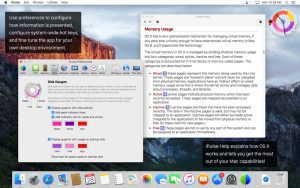
iPulse Mac is one of the most comprehensive monitoring tools available. Designed specifically for macOS, iPulse provides real-time insights into your system’s health, including CPU usage, memory consumption, network activity, battery status, and much more.
Unlike many generic system utilities, iPulse presents detailed performance information through highly customizable visual displays. Whether you’re a developer, content creator, power user, or simply someone who wants to understand what’s happening behind the scenes on their Mac, this application offers an impressive set of monitoring features without overwhelming the user.
In this review, we’ll explore everything you need to know about iPulse Mac, including its features, latest updates, alternatives, pros and cons, installation process, and system requirements.
Key Features of iPulse Mac
- Real-Time CPU Monitoring
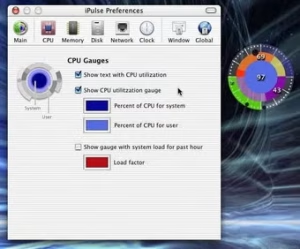
- One of iPulse’s strongest features is its ability to display real-time CPU activity.
- Users can monitor:
- Processor usage
- Individual core performance
- System load
- Active processes
- This helps identify performance bottlenecks and resource-heavy applications before they impact system responsiveness.
- Real-World Use Case
- Video editors rendering large projects can instantly see how much CPU power their editing software is consuming.
- Advanced Memory Tracking
- Memory management is critical for maintaining smooth macOS performance.
- iPulse provides detailed information about:
- RAM usage
- Free memory
- Wired memory
- Compressed memory
- Swap usage
- The visual graphs make it easy to understand memory pressure at a glance.
- Why It Matters
- Users running multiple applications simultaneously can quickly determine whether their Mac needs more available memory.
- Network Activity Monitoring
- Network monitoring is another area where iPulse excels.
- The software tracks:
- Download speeds
- Upload speeds
- Network throughput
- Internet usage trends
- This feature is especially useful for remote workers, streamers, and developers managing cloud-based workflows.
- Battery and Power Monitoring
- Laptop users will appreciate the battery monitoring tools.
- iPulse displays:
- Battery charge levels
- Remaining runtime estimates
- Charging status
- Power consumption trends
- This information helps optimize battery life during travel or remote work sessions.
- Disk Usage Monitoring
- Storage management is essential for maintaining peak macOS performance.
- With iPulse, users can monitor:
- Disk activity
- Read/write operations
- Storage utilization
- Performance trends
- This can help identify applications causing excessive disk activity.
- Customizable Visual Interface
- One of the most unique aspects of iPulse is its interface.
- Unlike traditional monitoring tools that rely on plain lists and numbers, iPulse uses attractive graphical displays that can be customized according to user preferences.
- Users can adjust:
- Colors
- Layouts
- Monitoring modules
- Display sizes
- This flexibility makes it suitable for both casual users and advanced professionals.
What’s New in the Latest Version of iPulse
- Recent updates have improved both functionality and performance.
- Highlights include:
- Enhanced compatibility with newer macOS versions
- Improved Apple Silicon optimization
- Better battery monitoring accuracy
- Refined network activity tracking
- Interface improvements for modern Mac displays
- Performance enhancements and bug fixes
- Increased system stability
- These updates ensure iPulse remains a dependable monitoring solution for current-generation Macs.
Best Alternatives to iPulse Mac
- iStat Menus
- A popular alternative offering extensive monitoring capabilities directly within the menu bar.
- MenuMeters
- Ideal for users seeking a lightweight and free monitoring solution.
- TG Pro
- Excellent for monitoring temperatures and controlling cooling fans.
- Activity Monitor
- Apple’s built-in utility remains useful for basic monitoring needs.
- Sensei
- Combines performance monitoring with maintenance and optimization tools.
Pros and Cons
Pros
- Comprehensive system monitoring
- Highly customizable interface
- Real-time performance insights
- Lightweight resource usage
- Excellent Apple Silicon support
- Useful battery and network tracking
- Menu bar integration
Cons
- Interface may feel complex for beginners
- Advanced customization requires time to learn
- Premium software compared to some free alternatives
System Requirements
- Details
- Operating System
- macOS
- Processor
- Intel or Apple Silicon
- RAM
- 4 GB minimum
- Storage
- Minimal installation space
- Internet Connection
- Required for updates
How to Install iPulse on Mac
- Installing iPulse is simple.
- Download the Software
- Download the latest version from the developer’s website.
- Open the DMG File
- Locate the downloaded DMG file and double-click it.
- Drag to Applications
- Move the iPulse icon into the Applications folder.
- Launch the Application
- Open iPulse from the Applications folder.
- Grant Permissions
- Allow any required macOS permissions for accurate monitoring.
- Customize the Dashboard
- Configure the monitoring panels according to your preferences.
- Troubleshooting Tips
- Ensure macOS is updated.
- Restart the application if metrics fail to load.
- Verify security permissions within System Settings.
Frequently Asked Questions
- ¿Es seguro usar iPulse en una Mac?
- Sí. iPulse es una aplicación de monitoreo de sistemas de buena reputación, diseñada específicamente para macOS.
- ¿Es compatible iPulse con Macs con procesadores Apple Silicon?
- Sí. El software es compatible con dispositivos Apple Silicon y funciona de manera eficiente en hardware Mac moderno.
- ¿Pueden usar iPulse los principiantes?
- Por supuesto. Si bien cuenta con funciones avanzadas, las funciones básicas de monitoreo son fáciles de entender.
- ¿Cuál es la mejor alternativa a iPulse?
- iStat Menus suele considerarse una de las mejores alternativas debido a sus amplias capacidades de monitoreo.